
How to: create and manage a model
How-to · Core Studio 3.0 · Verified 2026-09-01
Goal: a new custom model with the right descriptor, the right references, ready for scaffolding — created the extension-first way, never by editing Microsoft’s models (they’re read-only by design).
Prerequisites
- An open AOT root on a D365 F&O VM (for the build/package steps).
- Know your publisher name and which customization layer you belong in
(most teams:
usr).
Step 1 — Create Model wizard: properties
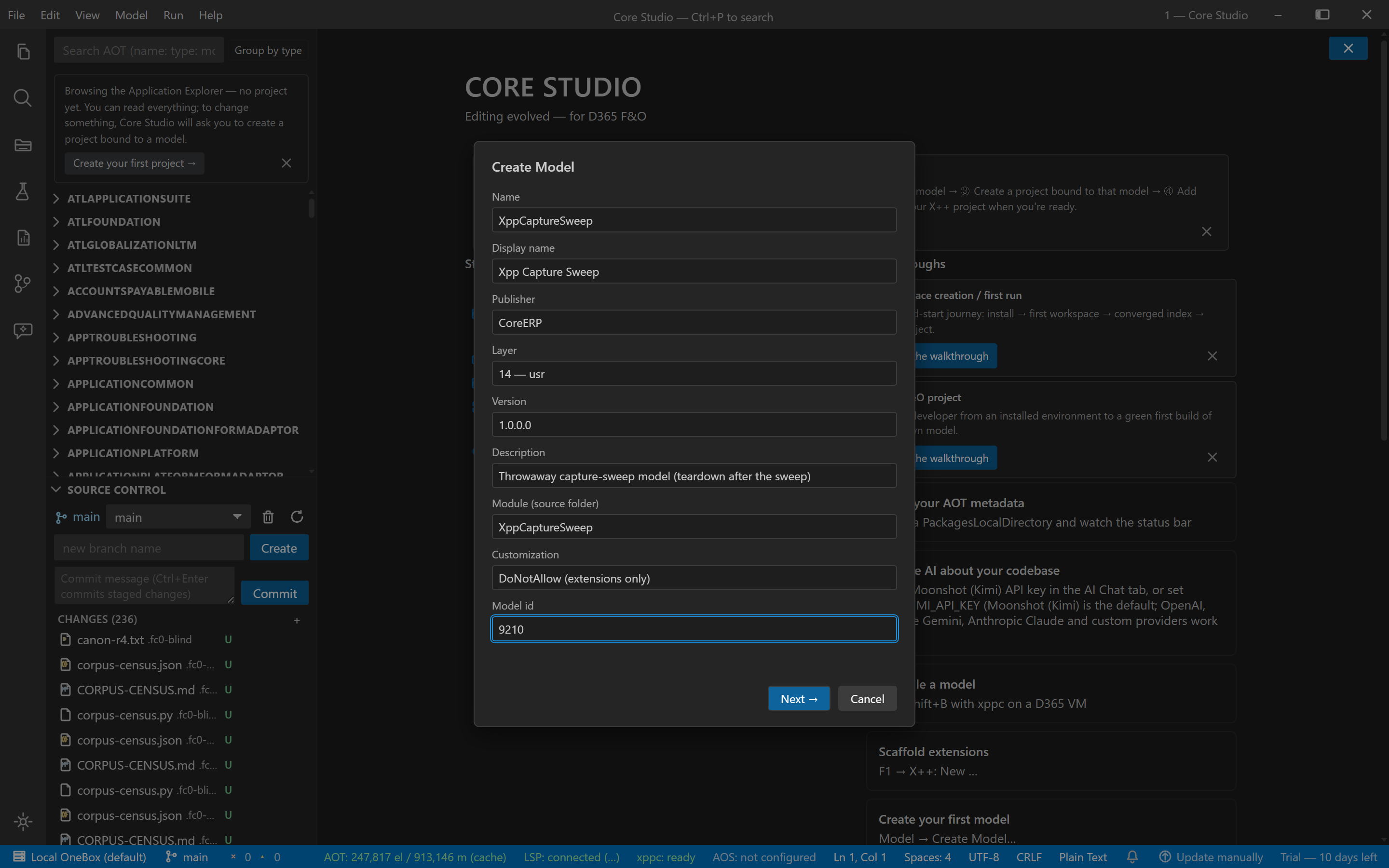
Model → Create Model… opens a two-step modal. Step 1:
| Field | Default | Notes |
|---|---|---|
| Name | — | Identifier rules; unique across every descriptor under the root (folder-split checked) |
| Display name | = Name | Free text |
| Publisher | last-used | Warns if it looks like “Microsoft” (that publisher is reserved — the model would be treated as read-only platform code) |
| Layer | 14 — usr | Also isv (8) / var (10) / cus (12) for partner tiers |
| Version | 1.0.0.0 | Four numeric parts |
| Module | = Name | Becomes <ModelModule> and the source folder |
| Customization | DoNotAllow | The sane default in an extensions-only world |
| Model Id | auto (lowest free in 9000–9999) | Licensed ISV ids from LCS can be typed over it |
Step 2 — references
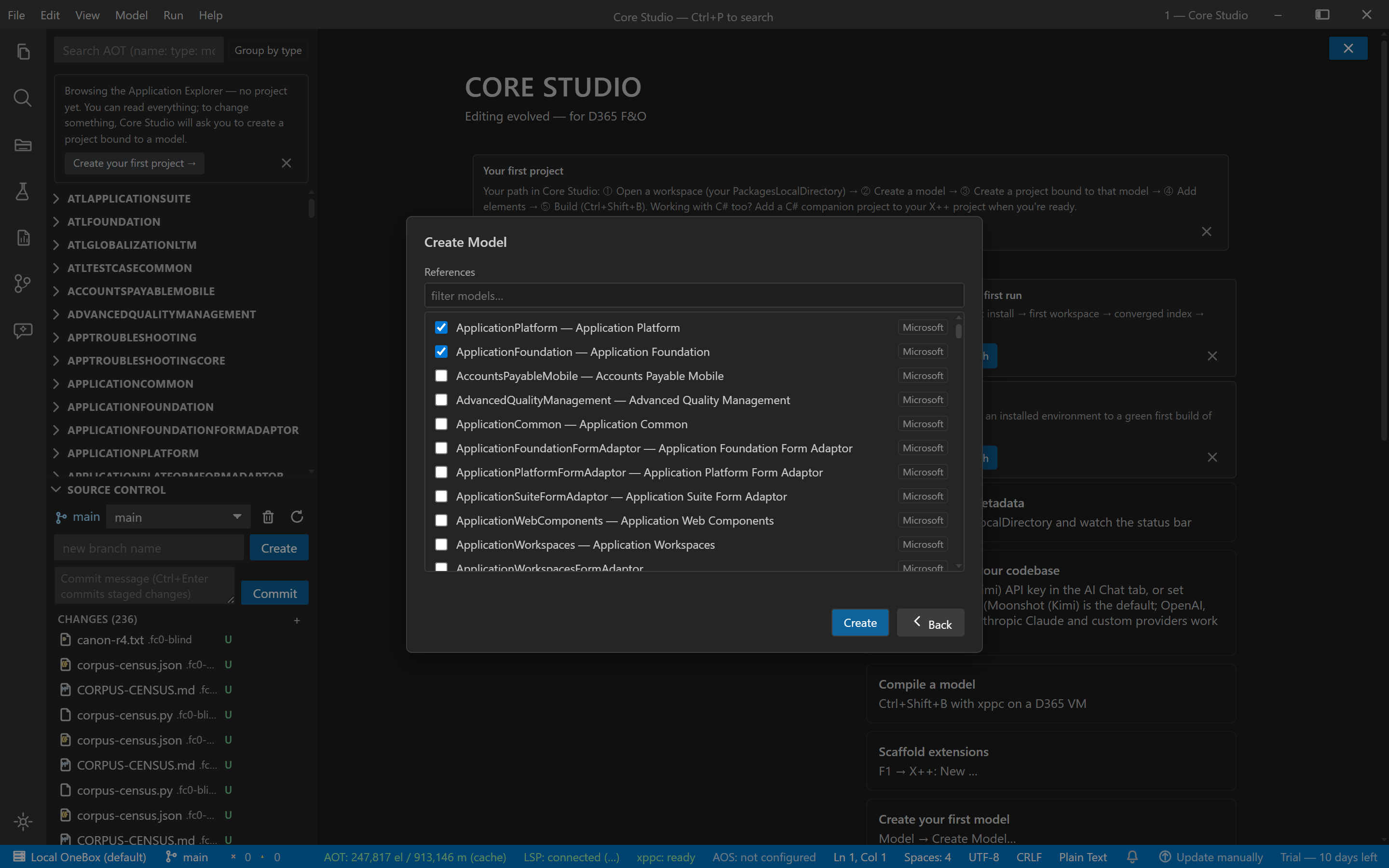
A checkbox list of every installed model (Microsoft models badged; ApplicationPlatform / ApplicationFoundation pinned on top, filterable). Default-checked: ApplicationPlatform + ApplicationFoundation — the minimal pair nearly every customization needs. Unchecking either earns a non-blocking warning, because forms, tables, and kernel types live there.
What lands on disk
<root>/<Name>/Descriptor/<Name>.xml ← serialized in the verified field order<root>/<Name>/<Module>/ ← empty; Ax* subfolders appear lazilyNo bin/, no XppMetadata/ (build-generated), no premature Ax* folders.
The descriptor round-trips against Microsoft’s own files byte-for-byte in
structure.
Right after creation
- The descriptor re-indexes immediately — the model appears in the AOT tree and pickers without a rescan.
- Follow-up links: Create first object (scaffolding prefilled with your model/module), New project bound to the model, Build model (off-VM shows its standard unavailable state).
Managing after creation
- Model → Update Model Parameters… — edit properties and references for custom models (Microsoft rows disabled). Adding a reference later is how you reach elements from other models (a form wizard data source from ApplicationSuite, for example).
- Model → View Model Dependencies — read the reference graph before you change it.
Verify it worked
- The model shows in the AOT explorer and wizard model pickers.
- A first scaffolded object lands under
<root>/<Name>/<Module>/Ax<Type>/. - Build Model compiles it 0/0 — and a deployable package comes out LCS-valid when you’re ready to ship.
If it goes wrong
- Name rejected — it collides with an existing descriptor (checked across folder splits, not just top-level folders) or breaks identifier rules.
- Types don’t resolve while scaffolding — you unchecked a reference you needed; add it back via Update Model Parameters….
Next: workspaces & projects · Table wizard.