
Wizard: List Page
Wizard walkthrough · Core Studio 3.0 · Verified 2026-09-01
When to use it: you need the standard browse surface for a custom table — ActionPane, grid, quick filter — the form users land on.
Size: M · Automatable: fully.
Prerequisites
- The primary table exists (scaffold it with the Table wizard first if not).
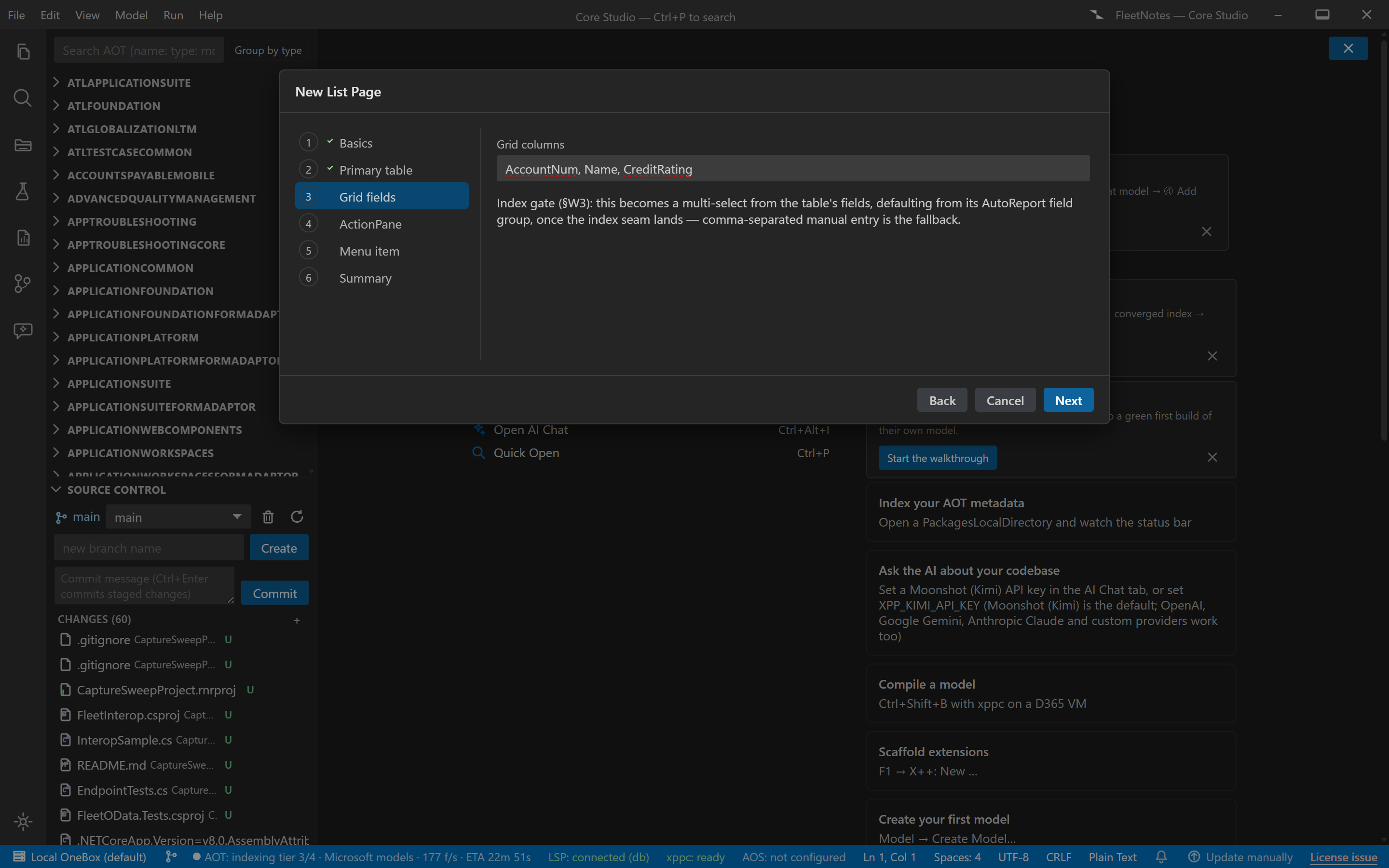
- Metadata index at tier ≥3 for the grid-field picker (Microsoft tables parsed); without it the field step degrades to manual entry with a warning.
Steps
- Basics — name, model/module.
- Primary table — index-backed picker.
- Grid fields — multi-select from the table’s fields; defaults come from the AutoReport field group when the index models it.
- ActionPane — New/Delete/Edit defaults. ListPage grids are view-oriented per the pattern (read-only browse — editing happens in the details form).
- Menu item + placement — offer to attach to an AxMenu (coordinates with the Menu wizard).
- Summary — files, preview, commit.
Output anatomy
AxForm/<YourListPage>.xml— ListPage-preset form: ActionPane, read-only grid (AllowEdit=No), the quick filter as an untyped control + FormControlExtension.AxMenuItemDisplay/<YourListPage>.xml— the display menu item.
Verify it worked
- ListPage conformance: 0 errors; grid columns carry
DataSource/DataField. - On-VM compile 0/0; open it — the grid browses read-only, the quick filter filters.
If it goes wrong
- Field step says manual entry — the index hasn’t parsed the table’s fields yet (tier <3); wait for tier completion or type field names and let the build verify.
- “Class ‘QuickFilterControl’ was not found” downstream — someone renamed
the extension’s
Name(it’s a platform class reference, not a label); restore the emitted value.
Next: Details form wizard for the maintenance form behind New/Edit.