
Walkthrough: Git panel
Action walkthrough · Core Studio 3.0 · Verified 2026-09-01
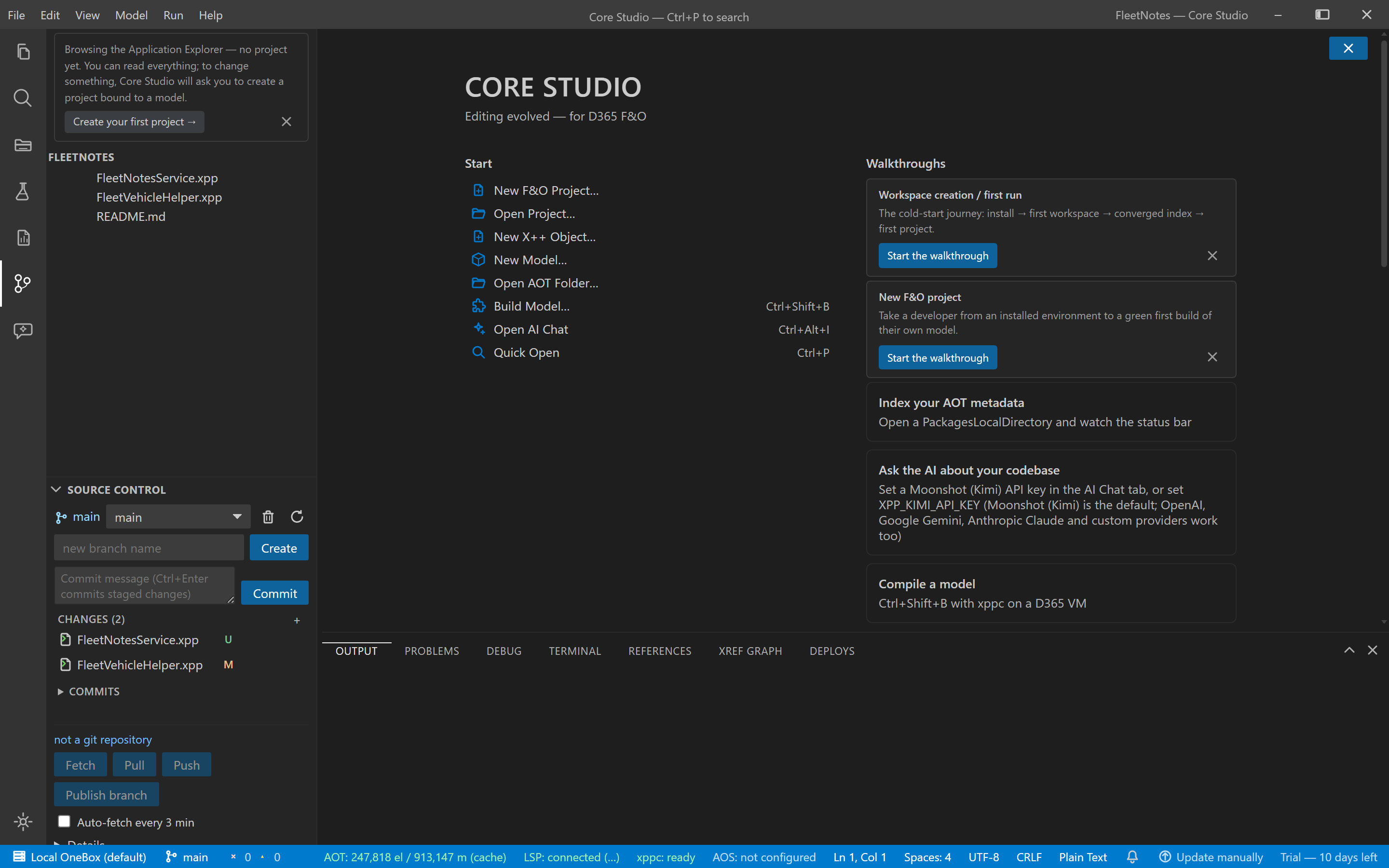
Concept: the Source Control section gives you the daily local git flow inside the sidebar — and deliberately stops there. Push and pull stay in the terminal; the panel never touches remotes, credentials, or your publishing decisions.
Prerequisites
- The AOT root is inside a git repository (otherwise the panel shows a plain “not a repository” state — it never initializes one for you).
Steps
- Open the Source Control section at the bottom of the sidebar.
- Review changed files — grouped modified / added / deleted / untracked.
- Stage-all + commit — author
CORE Studio <studio@local>. - Branch — list, switch, create; the log shows the last 20 commits.
Verify it worked
- Your edit appears in the changed-files groups; after commit, it tops the 20-commit log.
- Switching branches updates the working tree immediately.
If it goes wrong
- “Not a repository” — run
git initexternally at the root (the panel’s non-goal is deliberate). - Diverged branches — the terminal tells you the truth (
pull --ff-onlyfails loudly); the panel never silently merges.
Troubleshoot further: Git panel guide.