
How to: AOT roots & environment profiles
How-to · Core Studio 3.0 · Verified 2026-09-01
Goal: control which metadata the Studio reads — and switch roots without paying the indexing cost twice.
Root resolution (order of precedence)
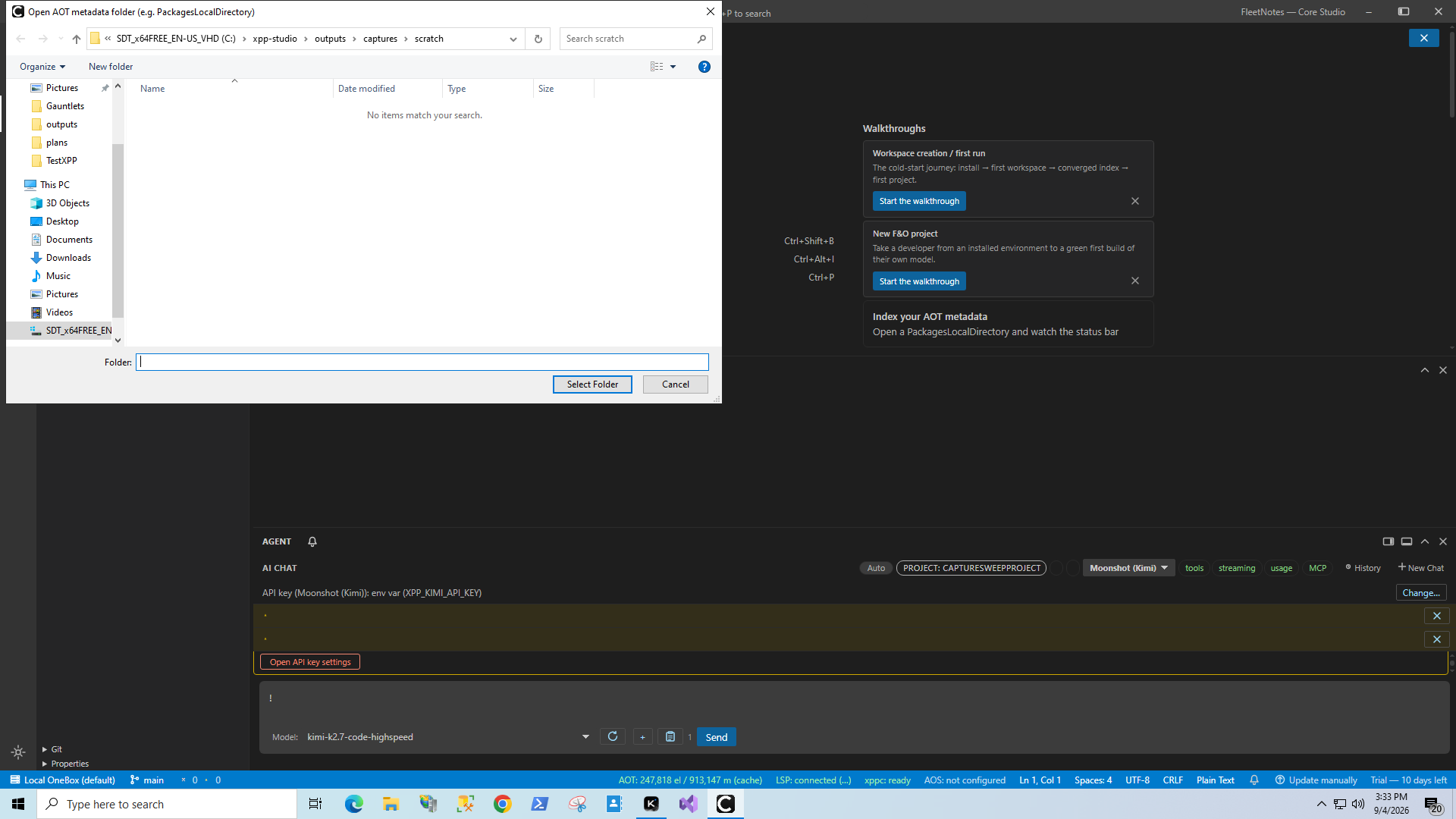
XPP_AOT_ROOTenvironment variable — the explicit override; wins over everything. Ideal for a second instance pointed at another root (see Tips & tricks).- File → Open AOT folder… — the interactive choice; persisted to settings and re-indexed immediately.
- Default — the bundled
samples/in dev builds; an empty per-user folder in the packaged app until you pick a root.
Switching roots
- Each root gets its own persisted index
(
%APPDATA%\xpp-studio\aot-index\<hash>.db) — switching back to a previously indexed root reloads from cache in seconds, with a background reconcile of any changes. - Your projects re-resolve their elements against the newly active root’s index as its tiers land.
What environment profiles add
The active environment profile supplies assembly hint paths when you
Add F&O Reference… to a C# companion — it is how the Studio knows which
environment’s Dynamics.Ax.* assemblies you mean. Profile behavior beyond
that is documented at evidenced depth only, on the
environment profiles walkthrough
— which carries a VERIFY-AT-CAPTURE flag until the profile surface is verified
against the running product.
Verify it worked
- After switching, the AOT explorer shows the new root’s models; the status bar tracks the fresh index’s tiers.
- A second open of the same root logs the cache-load line.
If it goes wrong
- You keep paying full re-indexes — a cache fingerprint or lock issue; see the indexing guide’s recovery section.
Next: workspaces & projects · AOT browsing & index lifecycle.