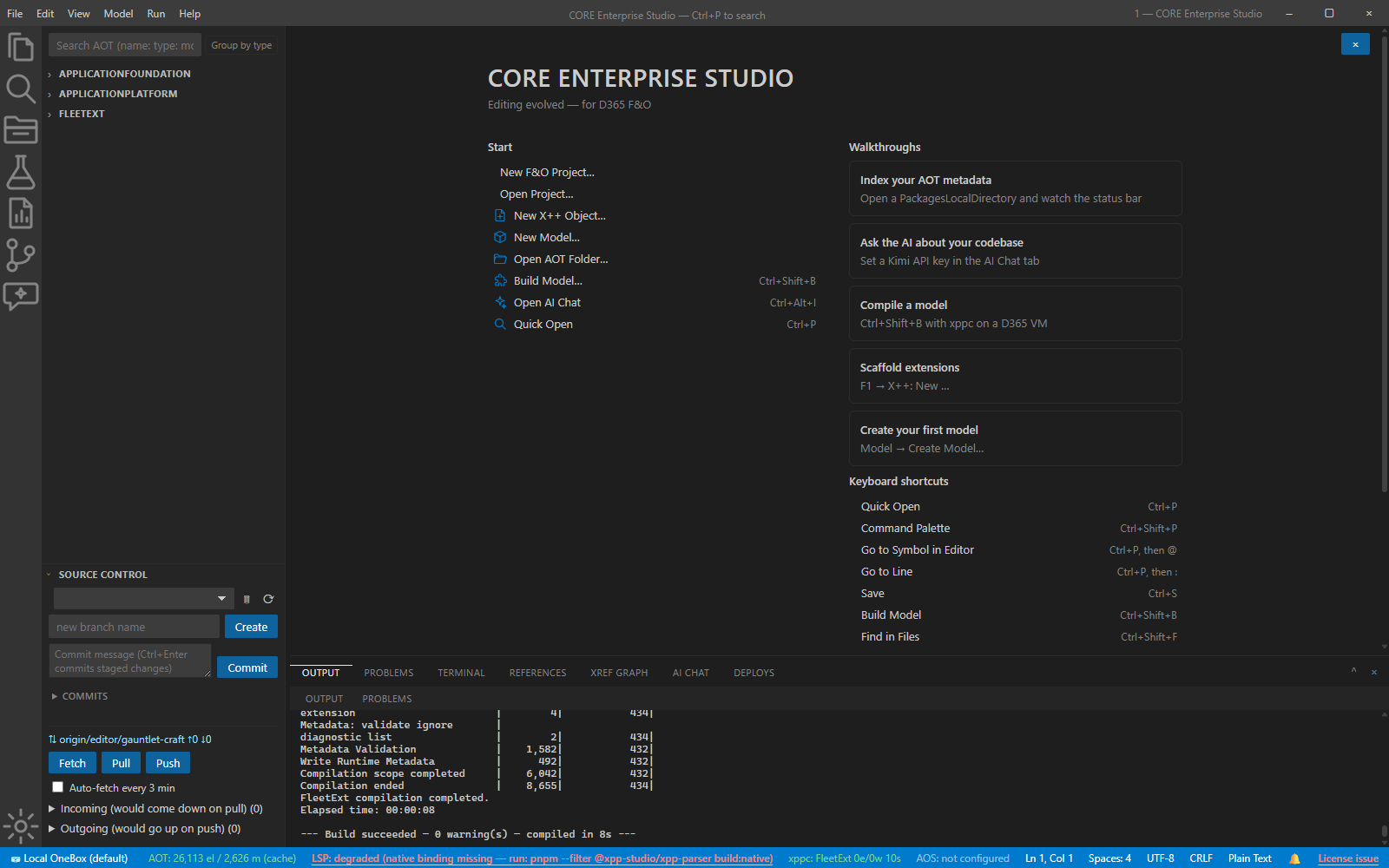
Getting started
Guide · Core Studio 3.0 · OneBox · Verified 2026-09-01
The canonical first hour with Core Studio: install, point it at your ERP’s metadata, let the index converge, build a model.
1. Download and install
Every build is code-signed — the signing certificate identifies CORE ERP BUSINESS SOLUTIONS — and ships through a signed update channel. Two flavors:
- Installer —
CoreEnterpriseStudio-Setup-<version>.exe: per-user NSIS installer. Pick the install directory; creates Start-menu/desktop shortcuts and the.xppfile association. - Portable —
CoreEnterpriseStudio-Portable-<version>.zip: unzip anywhere, runCORE Studio.exe. Nothing is installed.
App data (settings, per-root index databases) lives in %APPDATA%\xpp-studio
and survives install and uninstall.
2. Open an AOT folder
The IDE works on a D365 metadata folder — typically
C:\AosService\PackagesLocalDirectory on a onebox VM. Root resolution, in
order of precedence:
XPP_AOT_ROOTenvironment variable — explicit override; wins over everything.- File → Open AOT folder… — folder picker; persisted and re-indexed immediately.
- Default — the bundled
samples/in dev builds; an empty per-user folder in the packaged app until you pick a root.
3. Let the index converge
Opening a root indexes it in a background worker — the UI stays responsive even at ApplicationSuite scale (350,000+ files). Tiers:
- Descriptors & headers — the AOT explorer is browsable almost immediately.
- Your models fully parsed (methods, enum values).
- Microsoft models (Application* prefix) fully parsed.
- Full-text search tail — method sources drain into the FTS index.
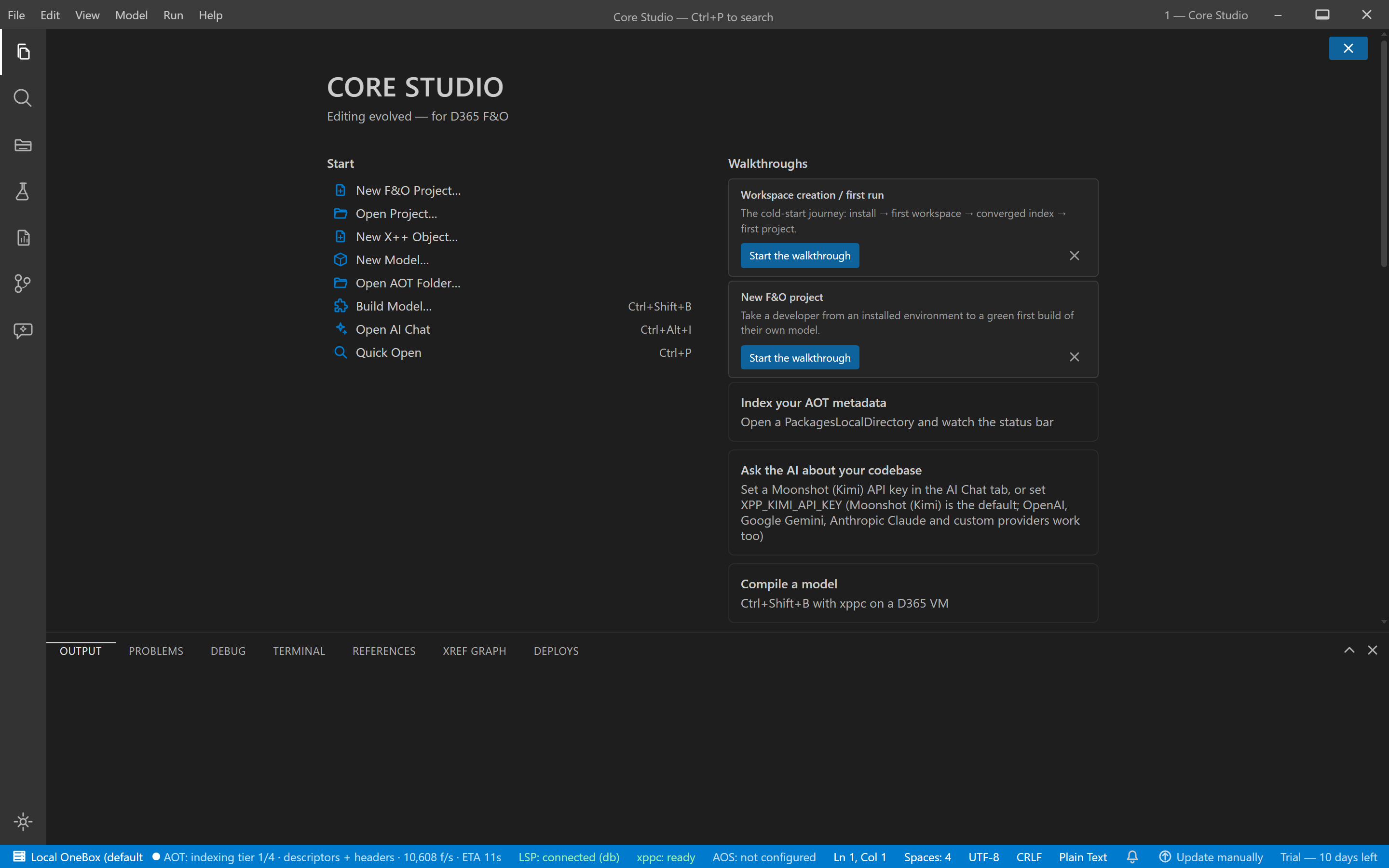
The status bar’s AOT segment shows live progress. While tier 4 runs, global search results are flagged partial — element and method lookup is already complete; only source full-text matches may be missing.
4. Your first build
File → Build Model… (Ctrl+B), pick a model. The compile runs in the background through the real xppc toolchain and streams into the Build drawer. Click any diagnostic to open the file at the line.
Next: the user guide walks every surface, or jump to editing X++.
Verify it worked
- The status bar’s AOT segment settles to a converged state (no more ETA); the log shows
[aot] loaded N elements from cache in Xson the next launch. - Your build drawer ends with an explicit verdict — never silence. A green verdict with zero errors means the real compiler accepted your model.
If it goes wrong
- Full re-index on every launch — the cache fingerprint or DB is off; see the indexing guide’s recovery section.
- Build unavailable — you’re off the D365 VM; the command’s typed state tells you exactly which prerequisite is missing. Nothing else is broken — editing, search, and AI work anywhere.